
Recruitment guide
Government Exam Browser & Device Guide 2026 — Explained
Ensure smooth government exam submissions in 2026 by using the right devices, browsers, and scan settings. Learn the best practices for hassle-free online applications.
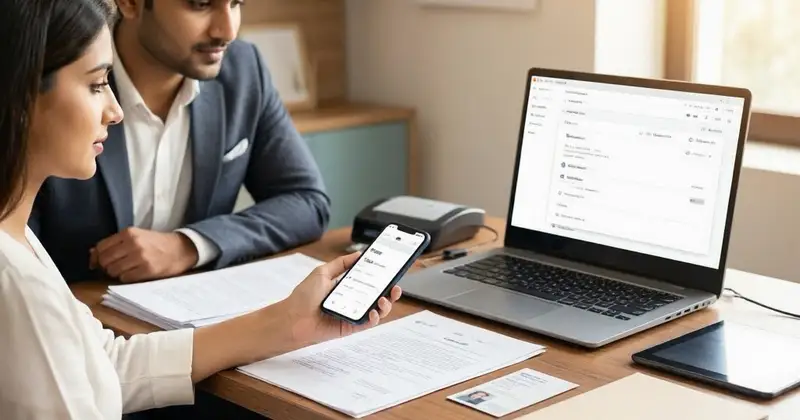
As government examinations continue to evolve with technological advancements, candidates must stay updated on the best devices, browsers, and scan settings to ensure smooth online submission of their application forms and exam responses. With the 2026 government exam season approaching, understanding browser compatibility and device requirements is crucial to avoid last-minute technical glitches that could impact your exam experience.

Introduction to Government Exam Browser Compatibility in 2026
Online government exams and application submissions have become the norm in India, reflecting a broader digital transformation in public services. However, not all browsers and devices offer the same level of compatibility with official exam portals. Candidates often face issues such as form submission errors, image upload failures, or slow loading times due to incompatible browsers or improper scan settings. This article delves into the best practices for device selection, browser usage, and scan settings to ensure your government exam submissions in 2026 are hassle-free.
Why Browser Compatibility Matters for Government Exams
Most government exam portals use specific web technologies that may not function correctly on all browsers or devices. Browser compatibility affects how web pages render, how forms behave, and how files are uploaded and processed. Using an unsupported browser can lead to:
- Submission failures due to unrecognized input formats
- Slow or incomplete loading of exam instructions or question papers
- Errors in uploading scanned documents or photographs
- Security warnings or blocked scripts preventing form completion

Therefore, ensuring your browser is compatible with the exam portal is essential for a smooth experience.
Best Devices for Government Exam Submission in 2026
Choosing the right device is the first step toward a seamless exam submission process. Below are the device types and their pros and cons for government exam applications:
| Device Type | Advantages | Disadvantages |
|---|---|---|
| Desktop Computer |
|
|
| Laptop |
|
|
| Tablet |
|
|
| Smartphone |
|
|
Recommendation: For government exam submissions in 2026, desktops and laptops remain the most reliable devices. They provide better browser support, easier document scanning/uploading, and stable internet connectivity. If you must use a tablet or smartphone, ensure the portal supports mobile browsers and test upload functionality in advance.
Top Browsers Compatible with Government Exam Portals
Government exam websites typically recommend certain browsers to ensure all features work correctly. Based on recent trends and official guidelines, here are the best browsers to use in 2026:
- Google Chrome
Chrome is widely supported due to its frequent updates, security features, and compatibility with modern web standards. Most exam portals function optimally on Chrome. - Mozilla Firefox
Firefox offers robust privacy controls and good compatibility. It is a solid alternative if Chrome is unavailable or problematic. - Microsoft Edge
Built on Chromium, Edge provides excellent compatibility similar to Chrome, with added integration into Windows environments. - Safari (Mac Users)
Safari is the default browser for Apple devices and works well for most portals, but some features may be limited compared to Chrome or Firefox.
Browsers to Avoid: Internet Explorer and outdated versions of any browser should be avoided as they lack support for modern web technologies and security protocols.
Recommended Browser Settings for Smooth Exam Submission
Beyond choosing the right browser, adjusting certain settings can prevent common issues during submission:
- Enable JavaScript: Most exam portals require JavaScript for interactive forms and buttons.
- Allow Cookies: Cookies help maintain session information; disallowing them may cause unexpected logouts.
- Disable Pop-up Blockers: Some portals open new windows for document upload or payment gateways.
- Clear Cache and Cookies: Before starting your application, clear old cache to avoid loading outdated pages.
- Update Your Browser: Always use the latest browser version for security and compatibility.
- Use Incognito Mode with Caution: While incognito mode disables extensions and cache, some portals may not work properly in this mode.
Optimal Scan Settings for Document Uploads
Uploading scanned documents such as photographs, signatures, and certificates is a critical part of government exam applications. Incorrect scan settings can lead to rejection or upload errors. Follow these guidelines:
1. File Format
- Use JPEG/JPG or PNG for photographs and signatures as these are widely accepted.
- Use PDF for multi-page documents like certificates or category proofs.
2. Resolution and Size
- Scan images at 300 DPI (dots per inch) for clear quality without excessive file size.
- Check the maximum file size allowed by the portal (usually between 100 KB to 500 KB).
- Compress images if necessary but avoid reducing quality below legibility.
3. Dimensions and Background
- Follow exact dimension requirements specified (e.g., 3.5 cm x 4.5 cm for photos).
- Use a plain white or light-colored background for photographs.
- Signatures should be scanned on white paper with clear ink.
4. Color Mode
- Photographs should be in color unless otherwise specified.
- Signatures and certificates can be scanned in grayscale or black and white.
5. File Naming
- Use simple file names without special characters or spaces.
- Follow any naming conventions provided in the instructions.
Common Technical Issues and How to Resolve Them
Despite best preparations, candidates may face technical problems. Here are common issues and quick fixes:
| Issue | Cause | Solution |
|---|---|---|
| Form Submission Error | Unsupported browser or expired session | Switch to recommended browser, refresh page, and re-login |
| Upload Failure | Incorrect file format or size exceeding limit | Check file format/size and compress or convert accordingly |
| Page Not Loading Properly | Cache issues or slow internet | Clear browser cache and check your internet speed |
| Security Warning or Blocked Content | Browser security settings or pop-up blockers | Adjust browser security settings and disable blockers temporarily |
| Session Timeout | Inactivity or portal timeout limits | Keep working continuously, save drafts if possible, and avoid long breaks |
Tips for a Smooth Government Exam Application Process
- Read Instructions Carefully: Always review the official exam notification and portal guidelines before starting your application.
- Prepare Documents in Advance: Scan and format all required documents before logging in to avoid delays.
- Check Browser and Device Compatibility Early: Test the portal on your chosen device and browser days before the deadline.
- Use Stable Internet Connection: Prefer wired connections or reliable Wi-Fi to prevent disconnections.
- Keep Backup Copies: Save copies of your filled application and uploaded documents for future reference.
- Contact Helpdesk if Needed: Use official helpline numbers or email support for unresolved technical issues.
Checks to complete before you apply
As government exams increasingly rely on online platforms, understanding browser compatibility, device selection, and scan settings becomes vital for candidates preparing for the 2026 exam cycle. Using recommended browsers like Google Chrome or Mozilla Firefox on desktops or laptops, combined with proper scan settings for document uploads, can significantly reduce technical difficulties during submission. Preparing in advance and following the tips outlined here will help ensure your application process is smooth and stress-free.
For more updates on government exams, results, and admit cards, visit our dedicated pages at /sarkari-result and /admit-card. Stay informed and prepared with TrueJobs.co.in.
Frequently Asked Questions
Q1: Can I use my smartphone to submit government exam applications?
While some portals support mobile browsers, it is generally recommended to use a desktop or laptop for better compatibility and ease of uploading documents. If you use a smartphone, test the portal functionality beforehand.
Q2: Which browser is best for government exam portals in 2026?
Google Chrome is the most widely recommended browser due to its frequent updates and compatibility. Mozilla Firefox and Microsoft Edge are also good alternatives.
Q3: What are the ideal scan settings for uploading photos and signatures?
Scan photos at 300 DPI in JPEG or PNG format with a plain background. Signatures should be clear, scanned on white paper, and saved in JPEG or PNG format within the specified size limits.
Q4: What should I do if the exam portal shows an error during form submission?
Try switching to a recommended browser, clear your cache, ensure your documents meet the format and size requirements, and check your internet connection. If the issue persists, contact the official helpdesk.
Q5: Are there specific file size limits for uploading documents?
Yes, most government exam portals specify maximum file sizes, usually between 100 KB to 500 KB. Always check the instructions and compress files if needed without compromising quality.
Related Resources
Related Government Job Resources
Continue with active job hubs and related government job pages on TrueJobs.
Tools for this recruitment topic
Use only the tools relevant to the dates, eligibility or documents discussed above.
TrueJobs Editorial Team
TrueJobs editorial desk
This article is prepared from the sources referenced in the guide and reviewed for clarity, links and dated information. Read our editorial and corrections policy.
Continue This Topic
Follow the closest earlier and newer coverage so older archive posts keep real contextual crawl paths.
Government Exam OTP Not Received 2026: Email Spam, DND and Recovery Options
Learn why government exam OTPs are not received in 2026 and discover solutions involving email spam, DND settings, and recovery options to ensure timely OTP delivery.
Police Recruitment Portal Login Problems 2026: OTP Delays, Server Busy and Fixes
Experiencing login issues on police recruitment portals in 2026? This guide covers OTP delays, server busy errors, and practical fixes to help you log in smoothly.
Read Next

Government Exam Server Busy 2026: Best Time to Apply & How to Avoid Failed Submission

IBPS Provisional Registration Number Lost 2026: How to Retrieve It Quickly
Government Exam PDF Upload 2026: Scan Resolution, File Size and Readability Checklist

Police Recruitment Portal Login Problems 2026: OTP Delays, Server Busy and Fixes
Explore Topics
Perfect Your Resume
Use our AI-powered Resume Builder to create ATS-optimized resumes.
AI Resume Builder