
Recruitment guide
Govt Exam Portal Login Problems 2026: Fixes — Explained
Struggling with government exam portal login problems like invalid credentials or OTP delays? Discover causes and solutions to access your exam portal smoothly in 2026.
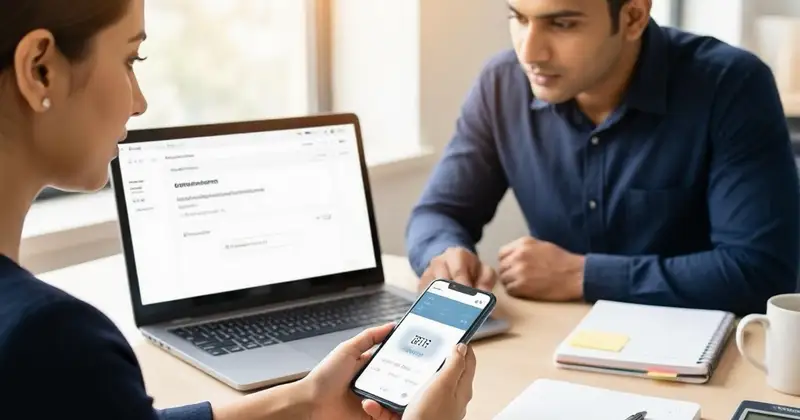
With the increasing number of aspirants applying for various government exams in India, the official exam portals have become the primary gateway for registrations, admit card downloads, and result announcements. However, many candidates face common login issues such as invalid credentials or OTP delays while accessing these portals. These problems can be frustrating, especially when deadlines are tight or exam schedules are approaching. In this comprehensive guide, we will explore the most frequent government exam portal login problems in 2026, their causes, and practical solutions to help candidates navigate these hurdles smoothly.

Understanding Common Login Issues on Government Exam Portals
Government exam portals are designed to handle thousands, sometimes millions, of users simultaneously. Despite technological advancements, users often encounter login difficulties. The most common issues include:
- Invalid Credentials: Incorrect username or password errors during login.
- OTP (One-Time Password) Delays or Non-receipt: Delay in receiving the OTP required for two-factor authentication.
- Account Lockouts: Temporary blocking of accounts due to multiple failed login attempts.
- Technical Glitches: Server downtime, browser compatibility issues, or slow loading pages.
- Forgotten Passwords or Username: Difficulty in retrieving login details.
Understanding these problems is the first step toward resolving them effectively.

Invalid Credentials: Causes and Solutions
Invalid credentials errors are among the most reported problems on government exam portals. This issue arises when the username or password entered does not match the registered details.
Common Causes of Invalid Credentials
- Typographical Errors: Mistyping username or password, including incorrect capitalization.
- Use of Old Credentials: Trying to log in with outdated or previously changed credentials.
- Multiple Accounts: Confusion due to registering multiple accounts with similar details.
- Incorrect Registration Details: Mistakes made during the initial registration process.
How to Fix Invalid Credentials Issues
- Double-check Input: Carefully re-enter your username and password, paying attention to case sensitivity and special characters.
- Reset Password: Use the “Forgot Password” option to reset your password via registered email or mobile number.
- Verify Registration Details: Ensure the credentials you are using match exactly with what you submitted during registration.
- Clear Browser Cache: Sometimes, cached data causes login issues; clearing it can help.
- Contact Support: If the problem persists, reach out to the official helpline or support email provided on the portal.
Remember, maintaining a secure and updated record of your login credentials is essential to avoid such errors.
OTP Delay or Non-Receipt: Why It Happens and How to Resolve
One-Time Passwords (OTPs) are a critical security feature used by most government exam portals for authentication. However, candidates often report delays or non-receipt of OTPs, which can block access to the portal.
Reasons Behind OTP Delays or Non-Receipt
- Network Issues: Poor mobile network coverage or internet connectivity can delay OTP delivery.
- Server Overload: High traffic on the exam portal’s backend servers may slow down OTP generation and dispatch.
- Incorrect Mobile Number: OTP sent to a wrong or outdated mobile number registered during application.
- SMS Blocking: Some mobile service providers or phone settings may block automated SMS messages.
- Technical Glitches: Temporary faults in the portal’s SMS gateway or third-party OTP services.
Effective Solutions for OTP Problems
- Check Mobile Network: Ensure you have good network reception and try switching between mobile data and Wi-Fi.
- Verify Registered Mobile Number: Confirm the mobile number linked to your exam profile is correct and active.
- Request OTP Again: Use the “Resend OTP” option after waiting for the stipulated time (usually 2-3 minutes).
- Disable SMS Blocking Apps: Temporarily turn off any SMS filtering or blocking apps on your phone.
- Try Alternate Contact Methods: Some portals offer email-based OTPs or alternate verification methods.
- Use Different Browser or Device: Sometimes switching browsers or devices can resolve technical issues.
- Contact Helpdesk: Reach out to the official technical support if OTP issues persist beyond reasonable attempts.
Account Lockouts: Causes and Recovery Tips
Repeated incorrect login attempts can lead to temporary account lockouts as a security measure on government exam portals. This can be stressful for candidates close to application deadlines.
Why Do Account Lockouts Occur?
- Multiple failed login attempts within a short period.
- Suspicious login activity detected by portal security systems.
- Use of automated scripts or bots triggering security alarms.
How to Regain Access After Lockout
- Wait for Lockout Duration: Most portals unlock accounts automatically after a cooling period (15-30 minutes).
- Reset Password: Use the password recovery option to reset your credentials.
- Contact Support: If locked out for extended periods, contact the portal’s technical support for manual unlocking.
- Avoid Multiple Attempts: Be patient and avoid repeated login attempts to prevent prolonged lockouts.
Technical Glitches: Browser Compatibility and Server Issues
Technical problems such as slow loading pages, server downtime, or browser incompatibility can prevent candidates from logging in smoothly.
Common Technical Issues
- Portal servers overloaded during peak application periods.
- Browser cache or cookies causing conflicts.
- Unsupported browsers or outdated browser versions.
- Firewall or antivirus software blocking portal access.
Tips to Overcome Technical Glitches
- Use Recommended Browsers: Most portals work best on Google Chrome, Mozilla Firefox, or Microsoft Edge. Avoid outdated browsers.
- Clear Browser Cache and Cookies: This can resolve many loading and login issues.
- Disable VPN or Proxy: Sometimes VPNs interfere with portal security protocols.
- Try Different Devices: Use a desktop or laptop instead of mobile phones if problems persist.
- Check Server Status: Look for official announcements regarding server maintenance or downtime.
- Attempt Login During Off-Peak Hours: Early mornings or late nights usually have less traffic.
Forgotten Username or Password: Retrieval and Reset Procedures
Many candidates forget their login credentials, causing delays in application or result checking processes.
Steps to Retrieve Username or Reset Password
- Click on the “Forgot Username/Password” link on the login page.
- Enter your registered email address or mobile number as requested.
- Follow the instructions sent via email or SMS to verify your identity.
- Create a new password adhering to portal guidelines.
- Log in using the updated credentials.
If you do not receive recovery emails or SMS, check your spam folder or contact the official support team.
Best Practices to Avoid Login Problems on Government Exam Portals
Preventing login issues requires proactive measures from candidates. Here are some recommended best practices:
- Keep Credentials Secure: Store usernames and passwords safely and avoid sharing them.
- Update Contact Details: Ensure your mobile number and email address are current on the portal.
- Use Strong Passwords: Combine letters, numbers, and symbols to create secure passwords.
- Regularly Clear Browser Cache: Helps maintain smooth portal access.
- Check Official Notifications: Stay updated on portal maintenance schedules and technical advisories.
- Apply Early: Avoid last-minute logins during peak traffic to reduce chances of errors.
Checks to complete before you apply
Encountering login problems on government exam portals can be stressful, but understanding the root causes and applying the right fixes can make a significant difference. Whether it’s invalid credentials, OTP delays, account lockouts, or technical glitches, candidates can take informed steps to resolve these issues promptly. Staying calm, following official guidelines, and reaching out to support when necessary will ensure a smoother experience during the crucial exam application and result phases. For more information on government exams, results, and admit cards, visit our dedicated pages /sarkari-result and /admit-card.
Frequently Asked Questions
Q1: What should I do if I receive an "Invalid Credentials" error repeatedly?
A1: First, double-check your username and password for any typos or case sensitivity. If the problem continues, use the “Forgot Password” feature to reset your password or contact the portal’s support team.
Q2: How long does it usually take to receive an OTP?
A2: Typically, OTPs are delivered within a few seconds to a couple of minutes. If you experience delays beyond 5 minutes, check your network connection and try resending the OTP.
Q3: Can I change my registered mobile number if I don’t receive OTPs?
A3: Most portals allow you to update your contact details after logging in. If you cannot log in, contact the official helpdesk for assistance.
Q4: What browsers are best for accessing government exam portals?
A4: Google Chrome, Mozilla Firefox, and Microsoft Edge are generally recommended. Always keep your browser updated to the latest version.
Q5: How can I avoid account lockouts during login?
A5: Avoid multiple failed login attempts. If you forget your password, use the reset option instead of guessing. Also, ensure your credentials are correct before logging in.
Related Resources
- How to Apply for Government Jobs Online
- Latest Sarkari Naukri 2026
- Admit Card Download Portal
Related Government Job Resources
Continue with active job hubs and related government job pages on TrueJobs.
Tools for this recruitment topic
Use only the tools relevant to the dates, eligibility or documents discussed above.
TrueJobs Editorial Team
TrueJobs editorial desk
This article is prepared from the sources referenced in the guide and reviewed for clarity, links and dated information. Read our editorial and corrections policy.
Continue This Topic
Follow the closest earlier and newer coverage so older archive posts keep real contextual crawl paths.
Photo Upload Failed 2026: Size, Ratio, Background and Browser Fixes
Learn how to fix the Photo Upload Failed 2026 error by adjusting photo size, aspect ratio, background, and browser settings for successful government job applications.
Government Exam Form Incomplete 2026: Understanding Submitted vs Draft Status
Confused about your government exam form status in 2026? Understand the difference between submitted and draft forms and how to avoid incomplete applications.
Read Next

Married Candidates Name Change 2026: Surname Update Rules for Govt Exams

One Candidate Multiple Applications 2026: Which Form Gets Accepted?
Date of Birth Mismatch in Government Exams 2026: Which Document Is Final?

Government Exam Form Preview Mistakes 2026: What to Check Before Final Submit
Explore Topics
Perfect Your Resume
Use our AI-powered Resume Builder to create ATS-optimized resumes.
AI Resume Builder